6 Hidden Google Maps Tricks You Should Be Using Every Day
Stop using Google Maps just to get from A to B. From offline road trip maps and saving money on gas, to never losing your car in a Target parking lot again, here are the hidden features you need to start using today.

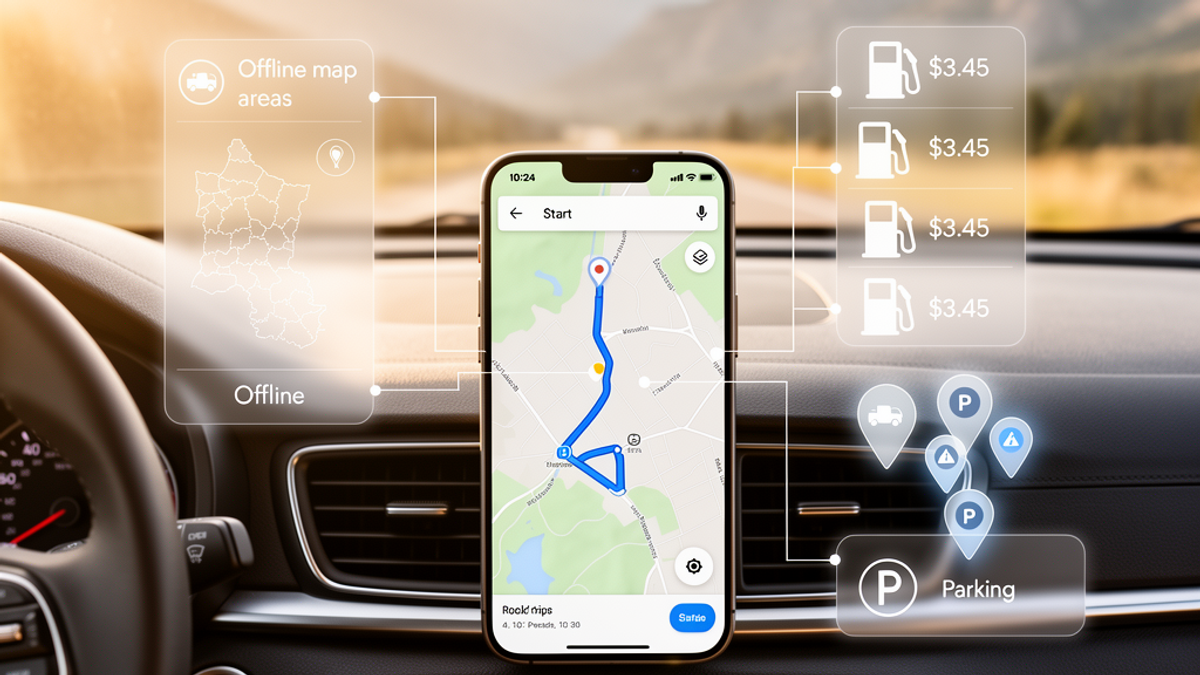
If we were sitting down over a cup of coffee right now and I asked to look at your phone, I can almost guarantee you have Google Maps installed. It is the unsung hero of the modern American smartphone. We use it to find the nearest drive-thru, dodge awful rush-hour traffic, and figure out exactly how long it's going to take to get to the airport.
But here is the thing: most of us are barely scratching the surface of what this app can actually do. You are probably using it like a basic digital compass—just plugging in a destination and blindly following the blue line.
As someone who appreciates a stress-free environment—whether that means listening to a calming frequency therapy session on Onyx Sound Lab or just avoiding a massive headache on the highway—I love finding tech hacks that make life genuinely easier. Google Maps is packed with hidden features that can save you serious time, eliminate travel anxiety, and even keep a few extra dollars in your wallet.
Let's dive into six incredibly practical Google Maps tricks you probably haven't been using, but definitely should be.
1. Download Offline Maps for the Ultimate Road Trip
The Scenario
You are heading out on a massive summer road trip. You've got your snacks, your Onyx Sound Lab playlists queued up, and you're cruising down a beautiful, scenic highway. Suddenly, the podcast cuts out. You look down at your phone, and you have zero bars. No cell service means no map updates, and suddenly you are navigating blind in the middle of a 100-mile stretch of unfamiliar territory.
How to Do It
Before you ever leave your driveway (and while you are still connected to your home Wi-Fi), you can download massive chunks of Google Maps directly to your phone's hard drive.
- Open Google Maps and tap your profile picture in the top right corner.
- Tap Offline maps.
- Tap Select your own map.
- Pinch and zoom to select the area you want to save. You can select an entire city, a massive metropolitan area, or a huge stretch of highway.
- Hit Download.
The Payoff
When you hit those inevitable dead zones—whether you're hiking in a national park or just driving through rural farm country—your GPS will continue to work flawlessly. The blue dot will keep moving, and you will never miss a turn just because your cell provider dropped the ball.
2. Find the Cheapest Gas Without Detouring
The Scenario
You are on the highway, you have a quarter tank left, and you need to stop. But gas prices are wildly unpredictable right now. You don't want to pull off at the first station you see and pay $3.89 a gallon, only to realize there was a station two miles down the road charging $3.45.
How to Do It
Google Maps will actually show you the price of gas at stations along your current route so you don't have to guess.
- While you are actively navigating, tap the magnifying glass icon (Search) on the right side of the screen.
- Tap the Gas stations icon.
- Google Maps will populate your route with nearby gas stations, displaying the current price for a gallon of regular gas right on the map.
- Tap the one you want, and it will add it as a stop without messing up your final destination.
The Payoff
Let's do the math. If you can save 40 cents a gallon on a standard 15-gallon fill-up, you just saved $6.00. Do that a few times a month, and you are keeping real money in your pocket. Plus, if you have a membership, you can easily search specifically for "Costco gas" along your route to make sure you are getting those warehouse savings.
3. The "Where Did I Park?" Pin
The Scenario
It is a Saturday afternoon in mid-July. It's 95 degrees Fahrenheit outside. You just spent an hour navigating the chaotic aisles of a massive Target or a Walmart Supercenter. You walk out the sliding glass doors with a cart full of stuff you didn't know you needed, look out over a sea of thousands of cars, and realize... you have absolutely no idea where you parked.
How to Do It
Save yourself the sweaty, frustrating walk up and down the aisles by dropping a parking pin the second you turn off your engine.
- Open Google Maps as soon as you park.
- Tap the blue dot that shows your current location.
- A menu will pop up from the bottom. Tap Save parking.
- A yellow "You parked here" pin will drop on the map.
- Pro Tip: You can even tap the pin to add notes (like "Level 4, Row G") or add a photo of the nearest pillar.
The Payoff
No more wandering around a Home Depot parking lot hitting the panic button on your key fob just to listen for the honk. When you are ready to leave, just open the app, tap the yellow pin, and hit "Directions" to be walked right to your driver's side door.
4. Time-of-Day Traffic Prediction
The Scenario
You need to go to a doctor's appointment across town tomorrow at 5:00 PM. If you check Google Maps right now (say, at 9:00 PM on a Tuesday), it will tell you the drive takes 20 minutes. But you and I both know that driving across town during Friday rush hour is a completely different beast than driving late at night.
How to Do It
You can use Google's massive trove of historical traffic data to predict exactly what the roads will look like in the future.
- Enter your destination and get directions as usual.
- Tap the three little dots in the top right corner (next to the starting location box).
- Tap Set depart or arrive time.
- Switch to the Arrive by tab and enter the date and time you need to be there (e.g., tomorrow at 5:00 PM).
- Hit Set.
The Payoff
Google Maps will calculate the typical traffic patterns for that exact time and day of the week. Instead of telling you it takes 20 minutes, it will give you a realistic window—like "typically 35 to 55 minutes." This allows you to plan your departure perfectly, ensuring you never show up late and stressed out again.
5. Share Your Live ETA (and Stop Texting "Almost There")
The Scenario
You are meeting a friend for dinner. They paid for your DoorDash order last night, and you promised to treat them tonight to settle the score (saving you the hassle of sending $25 over Venmo or Zelle). The problem? You are stuck in traffic, and they are sitting at the table waiting for you. Instead of texting "almost there" or "five minutes away" every time you hit a red light, just share your live ETA.
How to Do It
- While you are actively navigating to the restaurant, swipe up on the bottom menu (where it shows your remaining time and miles).
- Tap Share trip progress.
- Select your friend from your contacts, or choose an app like Messages or WhatsApp to send them a link.
The Payoff
Your friend will get a link that opens a live map on their phone. They can watch your little car icon move in real-time and see exactly when you will arrive, down to the minute. Once you arrive, the sharing automatically turns off. It is the ultimate courtesy feature, and it completely eliminates the dangerous habit of texting while driving to give updates.
6. Take a Trip Down Memory Lane with Street View Time Travel
The Scenario
This one isn't necessarily a time-saver, but it is incredibly cool. Neighborhoods change fast. Maybe you want to see what your childhood home looked like ten years ago, or maybe you want to see what that new apartment building looked like before it was constructed.
How to Do It
Google has been driving its Street View cars around for over a decade, and they keep all the old photos.
- Open Google Maps and search for an address.
- Tap on the Street View thumbnail (the little photo with the circular arrow on it) in the bottom left corner to enter Street View.
- If older imagery is available, you will see a little link at the bottom that says See more dates.
- Tap it, and a timeline slider will appear. Swipe through the years to watch the landscape change before your eyes.
The Payoff
It is a fascinating way to see how your city has evolved. You can watch old storefronts disappear, trees grow over the span of fifteen years, and seasons change from a snowy winter in 2011 to a bright summer in 2019. It's a literal time machine right in your pocket.
Your Actionable Takeaway for Today
Reading about these tricks is great, but taking action is what actually makes your life easier.
Here is what you should do right now: Open your Google Maps app, go to your profile, and download the "Offline Map" for your home city and the surrounding 50 miles. It takes less than two minutes and uses very little storage space. The next time there is a massive cell network outage or you find yourself in a concrete parking garage with zero bars, your GPS will continue to work perfectly.
Technology should work for you, not the other way around. By taking a few minutes to learn these hidden features, you are setting yourself up for smoother drives, cheaper gas, and a lot less daily friction.

SunMaster USA
Editorial Team
The SunMaster USA team finds, tests, and shares the smartest lifehacks, money moves, and home improvement tips that make everyday life easier for American families.