How to Speed Up a Slow Computer Without Paying for Repairs
Is your computer running slower than a DMV line? Before spending $150 at a repair shop, try these easy DIY fixes. Learn how to clear startup hogs, upgrade RAM, and swap to an SSD to make your old PC feel brand new again.

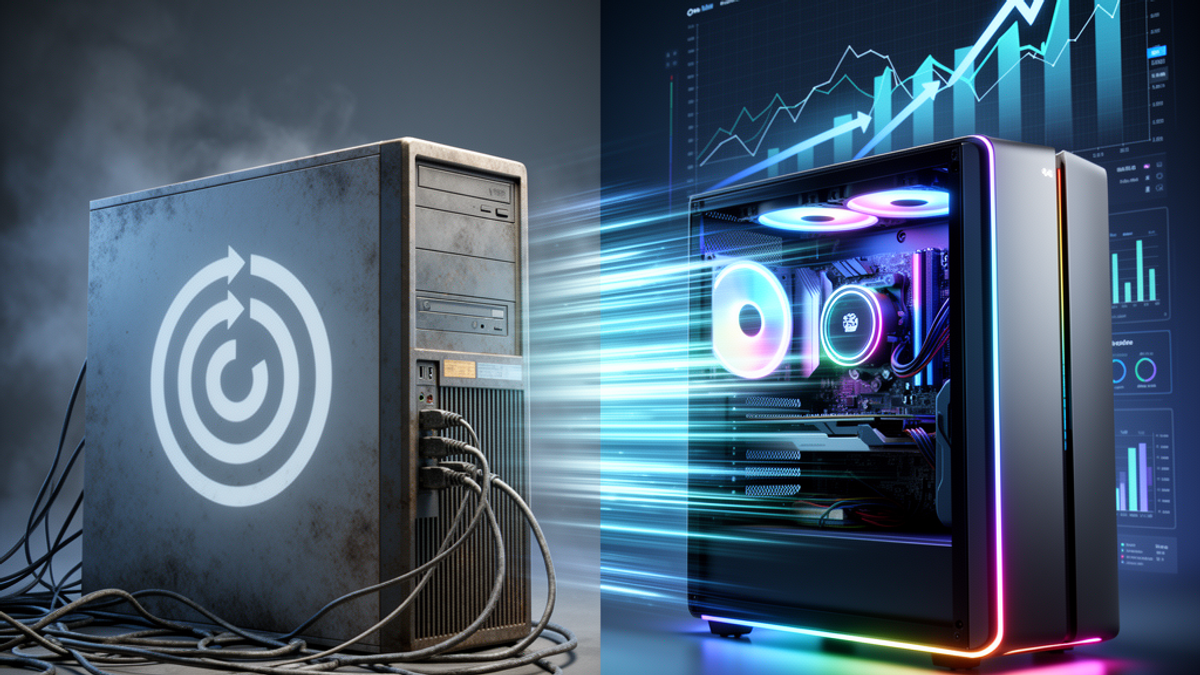
We have all been there. You sit down with your morning coffee, ready to tackle the day. You hit the power button, click on Google Chrome, and... you wait. And wait. You could literally DoorDash a breakfast burrito to your house in the time it takes your PC to load a single spreadsheet.
When your computer starts running slower than a line at the DMV, your first instinct might be to panic. You might be tempted to pack it up, drive it over to the Geek Squad at Best Buy, or drop it off at a local strip-mall repair shop. But here is the hard truth: those places are going to charge you a $100 to $150 flat fee just to look at your machine.
Before you hand over your hard-earned dollars, take a deep breath. You do not need to be a tech wizard to fix a slow computer. Most of the time, the solutions are completely free, and even the hardware upgrades are incredibly cheap and easy to do yourself.
Before we dive into the nuts and bolts, do yourself a favor: put on your favorite Onyx Sound Lab focus frequency, grab a fresh cup of coffee, and let's get to work. Here is your ultimate DIY guide to speeding up a slow computer without paying for repairs.
Phase 1: The Free Software Fixes (Do This Today)
Before you spend a single dime, we need to clean up the digital mess inside your machine. Think of this like cleaning out your garage—you wouldn't build an addition to your house before throwing away the junk you don't need.
1. The "Have You Tried Turning It Off and On Again?" Rule
Let's start with the easiest fix in the book. It sounds like a cliché from an IT sitcom, but when was the last time you actually restarted your computer? And no, closing the lid of your laptop does not count.
When you just close the lid, your computer goes to sleep. It is still holding onto all the memory, all the background processes, and all the digital baggage from the last three weeks. Over time, this clogs up your system's memory. Go to your Start menu, click the power icon, and physically hit "Restart." Doing this at least once a week clears out the temporary cache and gives your system a fresh slate. It costs zero dollars, takes two minutes, and can instantly cure a sluggish machine.
2. Clear the Startup Traffic Jam
The number one reason computers take forever to boot up is that too many apps are trying to start at the exact same time. Spotify, Microsoft Teams, Skype, and Adobe are notorious for inviting themselves to your computer's startup party.
How to fix it on Windows:
- Press `Ctrl + Shift + Esc` to open the Task Manager.
- Click on the Startup tab (or the little speedometer icon on Windows 11).
- Look at the list of programs. See anything you don't need the second you turn on your computer? Right-click it and select Disable.
How to fix it on a Mac:
- Click the Apple menu and go to System Settings.
- Navigate to General > Login Items.
- Highlight the apps you don't need at startup and click the minus (-) button to remove them.
3. Take Out the Digital Trash
If your hard drive is 99% full, your computer is going to crawl. Computers need empty space on the hard drive to use as "virtual memory" when things get busy.
On Windows, search for Disk Cleanup in your Start menu. Run it (preferably as an Administrator), check the boxes for "Temporary files" and "Previous Windows installations," and hit OK. You might instantly free up 20 gigabytes of useless junk.
Next, uninstall the bloatware. You do not need that free trial of McAfee antivirus that expired in 2019, and you definitely do not need Candy Crush taking up space. Go to your "Add or remove programs" menu and ruthlessly delete anything you haven't used in the last six months.
4. The Browser Tab Intervention
We need to have an intervention about your web browser. Google Chrome is a fantastic browser, but it eats RAM like it's at an all-you-can-eat Vegas buffet. If you are the kind of person who keeps 45 tabs open at all times "just in case," you are suffocating your computer's memory.
If you absolutely must keep those tabs open, install a free browser extension like The Great Suspender or Memory Saver (now built into Chrome's performance settings). These tools put inactive tabs to sleep, freeing up massive amounts of memory for the task you are actually working on.
Phase 2: The Cheap Hardware Upgrades (Under $100)
If you've cleaned up your software and your computer is still dragging its feet, it might be time for a hardware upgrade. Don't panic—upgrading basic PC components is as easy as snapping a Lego piece into place. You don't need a trip to Home Depot for heavy tools; a standard Phillips-head screwdriver is usually all you need.
1. Add More RAM (The $40 Fix)
RAM stands for Random Access Memory. Think of RAM like the physical surface area of your physical desk. If you have a tiny desk (like 4GB or 8GB of RAM), you can only have a few papers out at a time. If you want to look at a new paper, you have to file an old one away. This constant swapping slows you down. If you upgrade to a massive desk (16GB or 32GB of RAM), you can have a dozen spreadsheets, Spotify, and 20 browser tabs open all at once without breaking a sweat.
Most older laptops and desktop PCs allow you to add more RAM.
- Step 1: Go to Crucial.com and run their free System Scanner. It will tell you exactly what kind of RAM your computer uses and how much it can hold.
- Step 2: Buy the RAM. A 16GB kit usually costs between $30 and $50 on Amazon or at Best Buy.
- Step 3: Watch a 5-minute YouTube tutorial for your specific computer model. Usually, you just unscrew the bottom of your laptop, pop out the old RAM sticks, and click the new ones in. You just saved yourself a $100 labor fee.
2. The Holy Grail: Swap Your HDD for an SSD (The $60 Fix)
If your computer is more than five years old, there is a very good chance it uses a traditional Hard Disk Drive (HDD). An HDD is essentially a tiny record player inside your computer. It has a physical spinning platter and a mechanical arm that has to physically move to find your data. It is ancient, slow technology.
A Solid State Drive (SSD), on the other hand, is like a massive USB flash drive. There are no moving parts. It accesses data instantly. Swapping an old HDD for a new SSD is the single most dramatic speed boost you can give a computer. A machine that takes three minutes to boot up on an HDD will boot up in about 12 seconds on an SSD.
- The Cost: You can buy a high-quality 1TB SSD from brands like Samsung or Western Digital at Walmart or Amazon for about $60.
- The Process: You will need a cheap SATA-to-USB cable (about $10). You plug the new SSD into your computer via USB, use free "cloning" software like Macrium Reflect to make an exact carbon copy of your current hard drive onto the new SSD, and then physically swap the drives.
When you turn the computer back on, everything—your files, your wallpaper, your passwords—will be exactly where you left it. The only difference is that your computer will suddenly feel like it's on rocket fuel.
Phase 3: Maintenance & Best Practices
You wouldn't drive your car 50,000 miles without changing the oil, and you shouldn't run your computer for years without basic maintenance.
Watch Your Temperatures
If your laptop feels like it's running at 150 degrees Fahrenheit and the fans sound like a jet engine taking off, your computer is likely "thermal throttling." This means the computer is intentionally slowing itself down to prevent catching fire. Keep your laptop on a hard, flat surface (not your bed or a pillow) so the vents can breathe. If you have a desktop, open the case once a year and use a $6 can of compressed air to blow the dust out of the fans.
Stop Paying for Antivirus
Here is a controversial but true fact: you do not need to pay $80 a year for third-party antivirus software like Norton or McAfee. In fact, these programs are often so bulky that they slow your computer down more than an actual virus would. If you are using a modern Windows machine, the built-in Windows Defender is completely free, runs quietly in the background, and is highly rated by cybersecurity experts. Combine that with a free ad-blocker extension on your browser, and you are perfectly safe.
Phase 4: The "Time of Death" Talk (Repair vs. Replace)
Sometimes, despite your best efforts, a computer is simply too far gone. How do you know when it is actually time to bite the bullet and buy a new one?
Apply the 50% Rule. If your computer is more than 5 to 7 years old, and the cost of upgrading or repairing it is more than half the price of a brand-new machine, it's time to replace it.
For example, if your motherboard dies or you crack the screen, a repair shop might quote you $300. You can walk into Costco today and buy a lightning-fast, brand-new laptop for $500. Spending $300 to fix a 6-year-old machine is just bad math.
If you do decide to upgrade, don't just throw the old one in the trash. Electronic waste is a massive problem. Instead, pull your hard drive out (to protect your data), and sell the broken laptop on Facebook Marketplace for parts. There is always a tinkerer out there willing to Venmo or Zelle you $40 for a broken laptop so they can harvest the screen or the keyboard.
The Bottom Line
A slow computer doesn't necessarily mean a dying computer. Before you surrender to the frustration and drain your bank account at a repair shop, take 30 minutes to try the free fixes.
Your actionable takeaway for today: Right now, as soon as you finish reading this article, press `Ctrl + Shift + Esc` (or open your Mac's Login Items). Look at what is launching when you boot up, and disable at least three programs you don't need. Then, hit restart. You might just find that the speedy, reliable computer you've been wishing for has been sitting on your desk all along.

SunMaster USA
Editorial Team
The SunMaster USA team finds, tests, and shares the smartest lifehacks, money moves, and home improvement tips that make everyday life easier for American families.